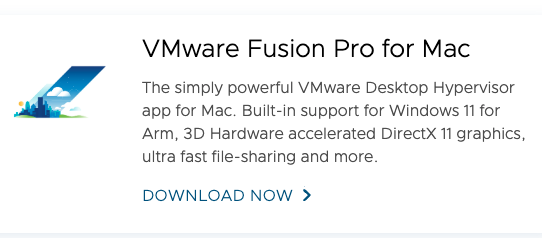
1. VMware fusion for mac 다운로드!
연결되는 사이트에 회원 가입해야지 다운이 가능하다
https://www.vmware.com/products/desktop-hypervisor/workstation-and-fusion
Desktop Hypervisor Solutions | VMware
VMware Workstation and VMware Fusion desktop hypervisors are the industry leaders in local virtualization. Learn how VMware’s local virtualization solutions provide an easier way to build, test and deliver any app for any device or cloud.
www.vmware.com


2. Img 다운받아서 넣기
(설치 이미지는 한번실패해서 다른 내용인데 arm 이미지로 해야함!)
밑의 링크에서 다운받으세요.
https://ubuntu.com/download/server
Get Ubuntu Server | Download | Ubuntu
Get Ubuntu Server one of three ways; by using Multipass on your desktop, using MAAS to provision machines in your data centre or installing it directly on a server.
ubuntu.com

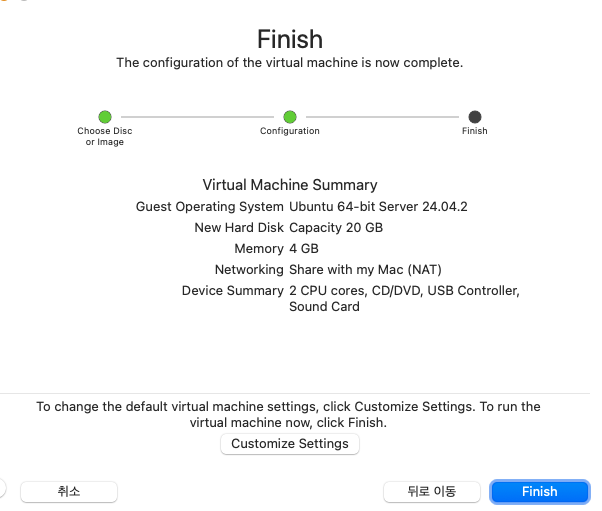
3. 우분투 설치 및 설정 시작
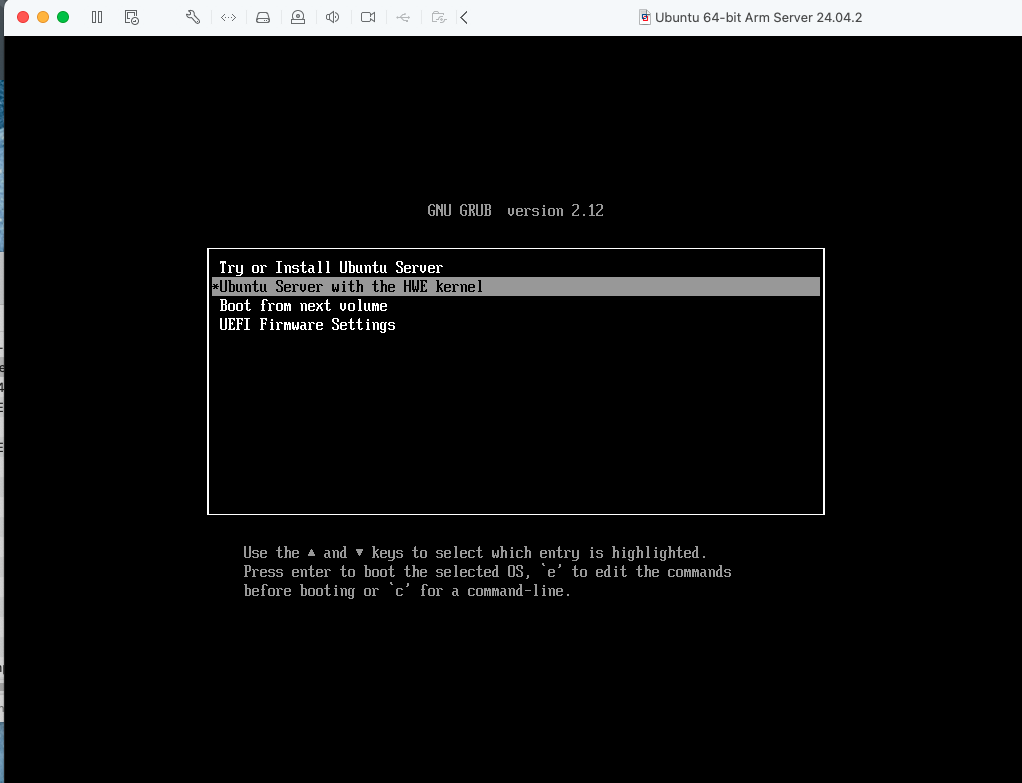
- control+command 하면 마우스 빠져나오기 가능
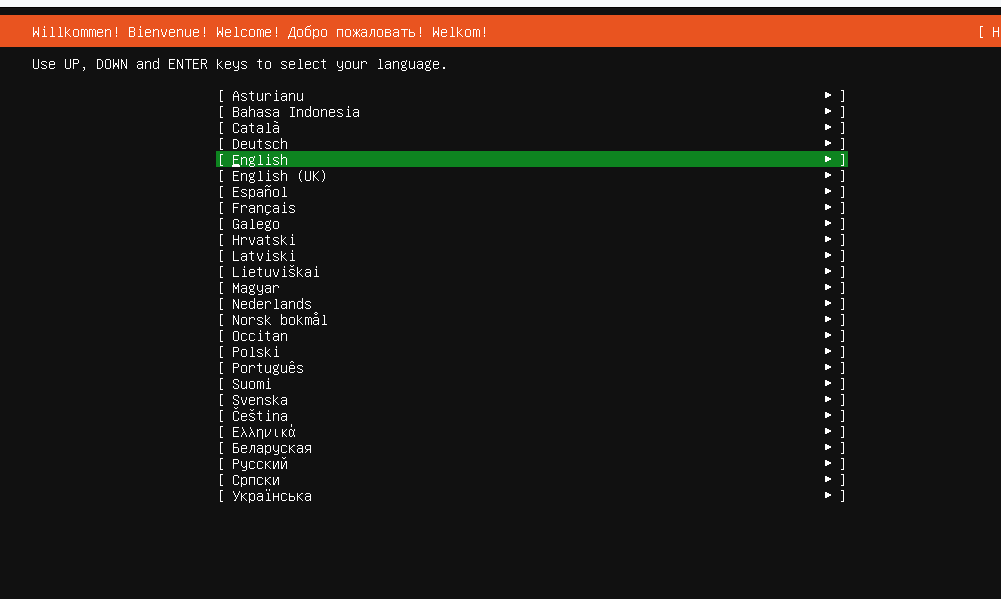
- 커스텀을 하진 않을거라서 그냥 next
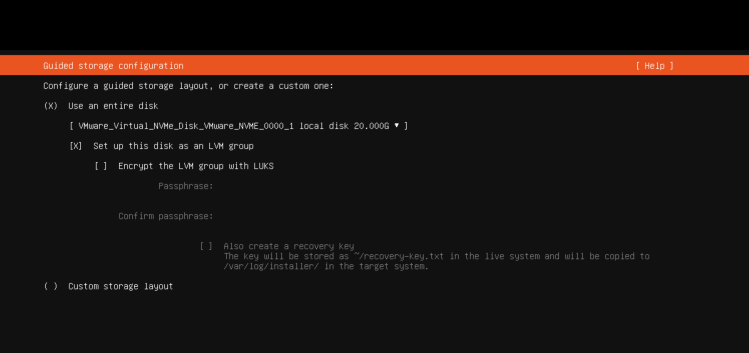
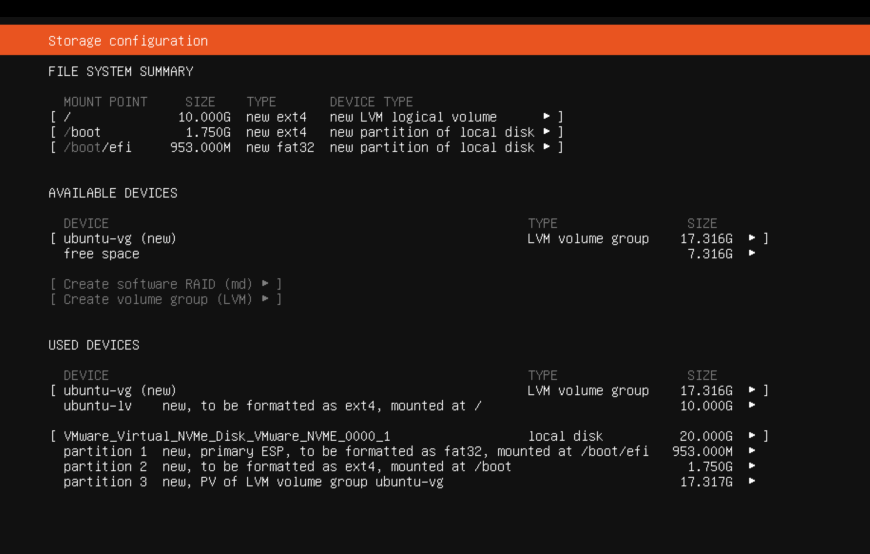
- 프로필 설정
- id, pw 설정

- 우분투 설치
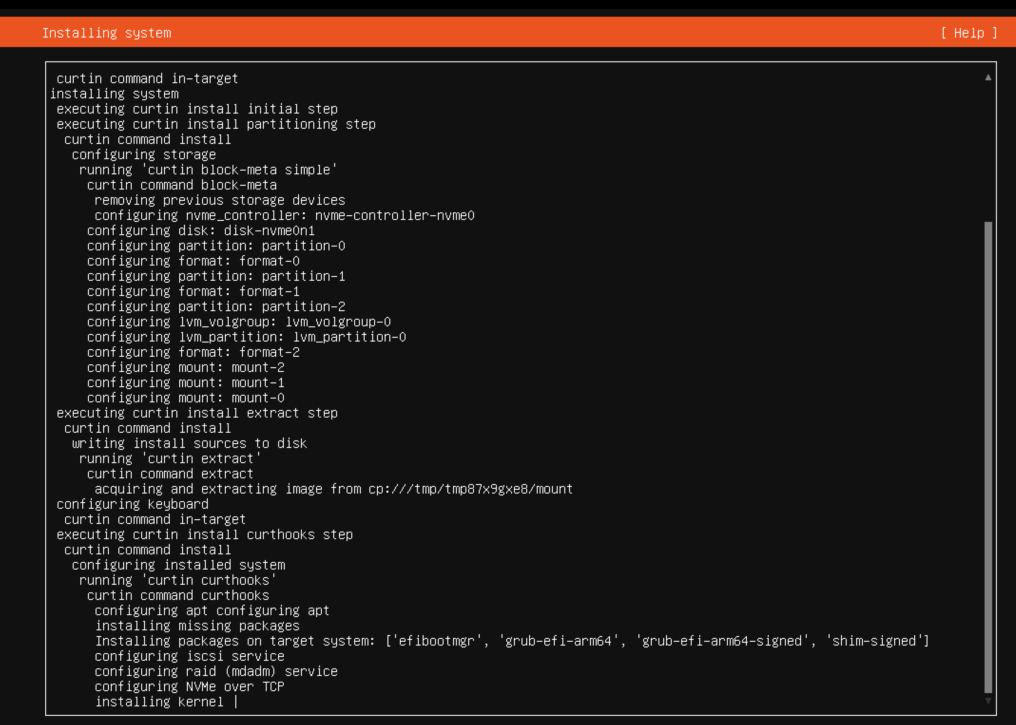
- 설치 다하면 Reboot now 눌러서 재부팅하기
로그인 완료~
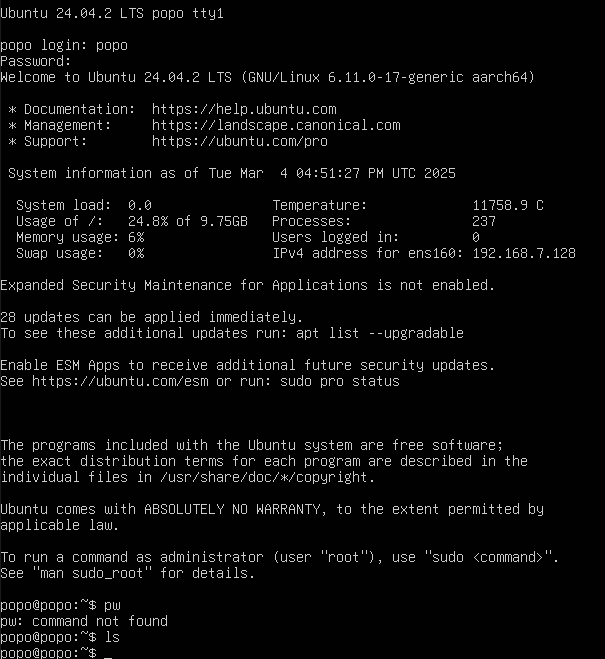
- 데스크탑 형태의 우분투 화면을 사용하려면?
sudo apt update

sudo apt intall ubuntu-desktop

sudo reboot
reboot 하면 완료~

'mac 적응기' 카테고리의 다른 글
| Mac에 폰트 적용하기 (0) | 2025.06.29 |
|---|